Custom fields guide - reviewed March 17, 2026

Project Management Software With Custom Fields

Model intake, delivery, approvals, and reporting with custom fields that keep the right project data visible at the right step of the workflow instead of scattering status, priorities, and stakeholder context across side spreadsheets.

Use this page to compare project management software with custom fields before your team standardizes on another board setup that still depends on side spreadsheets, local naming conventions, and manual reporting cleanup.

Scrumbuiss custom fields overview

How we reviewed project management software with custom fields

Reviewed on March 17, 2026. This page compares one buying question: which project management tools make custom fields useful as part of the operating workflow, not just another configuration layer that teams have to police manually after kickoff.

  • Scrumbuiss references come from the live pricing page plus the Project Delivery, Forms, Project Brief, Dashboard, and Automations pages on this site.
  • Competitor references come from the official custom-fields pages published by ClickUp, Asana, and Wrike reviewed on March 17, 2026.
  • The goal is not to count field types. It is to help teams decide whether request data, delivery context, approvals, and reporting can stay standardized without adding another cleanup pass every week.

When Scrumbuiss is a fit

The better decision depends less on how many field types a tool exposes and more on whether those fields keep request data, delivery context, and stakeholder reporting aligned in the same operating workflow.

Strong fit for Scrumbuiss

Best when the team needs custom fields to keep request data, delivery status, stakeholder context, and reporting dimensions consistent from intake through execution.

  • The workflow already relies on project type, client, owner, priority, approval state, or risk fields that should stay visible after kickoff.
  • Teams want forms, briefs, dashboards, and automations to read from the same field structure instead of separate naming conventions.
  • The main buying need is workflow standardization and reporting quality, not just adding more labels to a board.

Worth piloting carefully

A live pilot is useful when the team already has custom fields somewhere, but the data model still breaks down across requests, execution views, and stakeholder reporting.

  • Test one active workflow where fields already matter, such as project intake, delivery handoff, weekly reporting, or client work.
  • Measure whether the team spends less time re-entering the same data or cleaning inconsistent statuses before reviews.
  • Validate that the field model stays readable for requestors, project leads, and stakeholders instead of becoming admin overhead.

Probably not the best fit

A simpler board or tag system may fit better when the team does not need structured workflow data across multiple stages or audiences.

  • The team mainly needs lightweight labels, not a shared field model that powers routing, reporting, and follow-up automation.
  • Projects are simple enough that a note or checklist still captures the context without creating reporting blind spots.
  • Another system already owns the data model and this tool only needs to track a small amount of execution status.

Model the right data at intake and kickoff

Capture request and delivery context once so the workflow does not depend on follow-up clarification

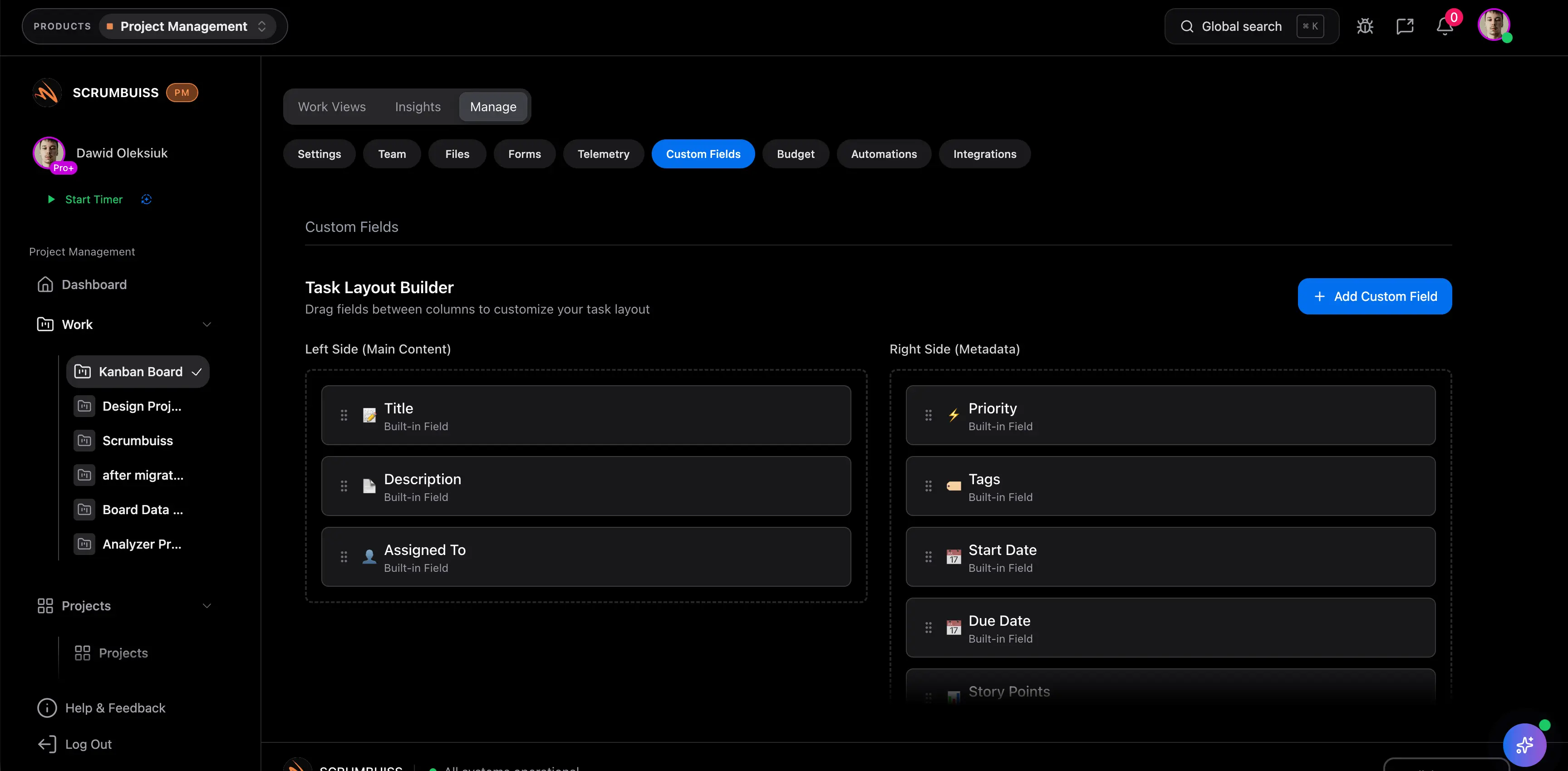
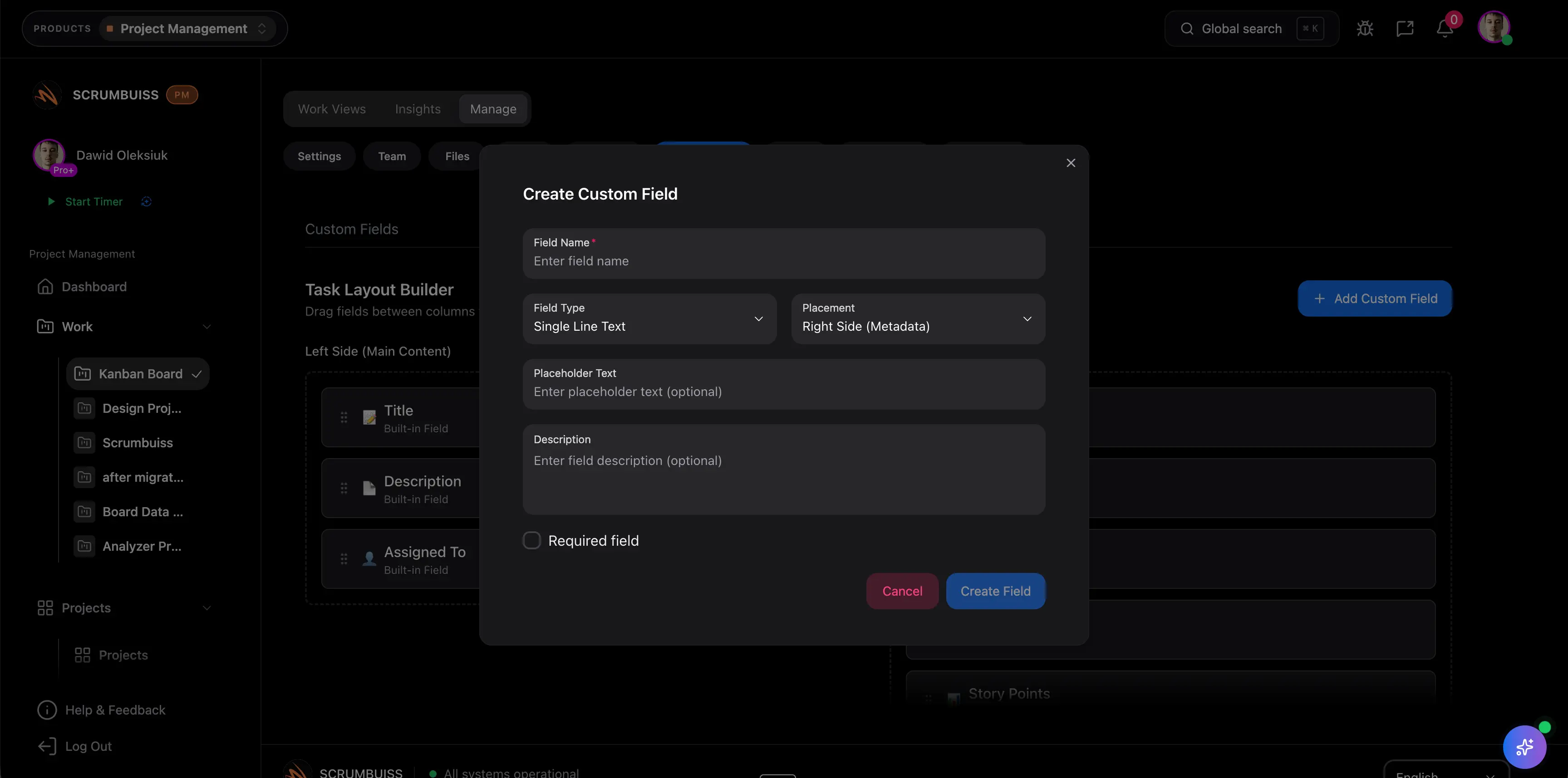
Custom fields are most useful when they standardize the information teams repeatedly need to triage, scope, and start work. That includes request type, stakeholder, deadline, approval status, client, delivery stage, and other fields that should still matter after the first handoff.

  • Use structured fields to capture the project context that determines scope, routing, and ownership before work enters delivery.
  • Keep the same core field definitions visible in forms, briefs, and project records so the data model does not reset after intake.
  • Reduce project startup delays caused by incomplete requests, ad hoc naming, or data copied from email into a second system.
Scrumbuiss custom fields setup used to model project intake and kickoff data

Keep layouts readable for the people using them

Show the right fields to the right teams instead of burying every workflow in one overloaded screen

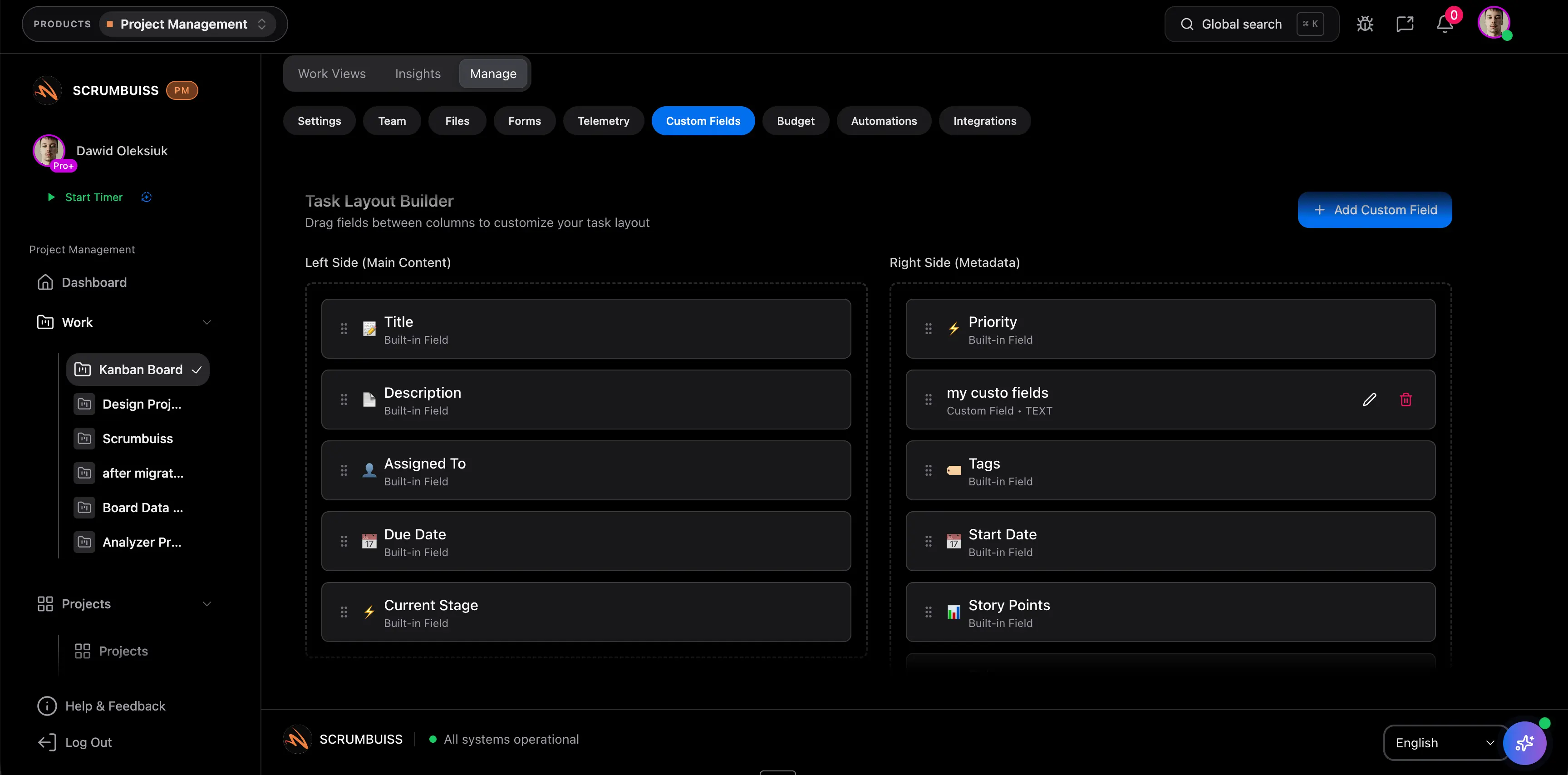
A custom-field strategy fails when every view shows every field and the team stops trusting the structure. The better workflow keeps intake, execution, and review layouts readable so different roles see the fields they actually need to make the next decision.

  • Use role-aware layouts so requestors, project leads, and stakeholders see the relevant fields without digging through setup noise.
  • Keep delivery views readable by exposing the fields that guide the next action, not every reporting dimension at once.
  • Make handoffs cleaner by preserving field context across views instead of asking each team to translate the work in its own way.
Scrumbuiss custom fields layout showing the right project data in the workflow

Standardize reporting and automations

Use shared field definitions to power dashboards, routing, and follow-up work without manual cleanup

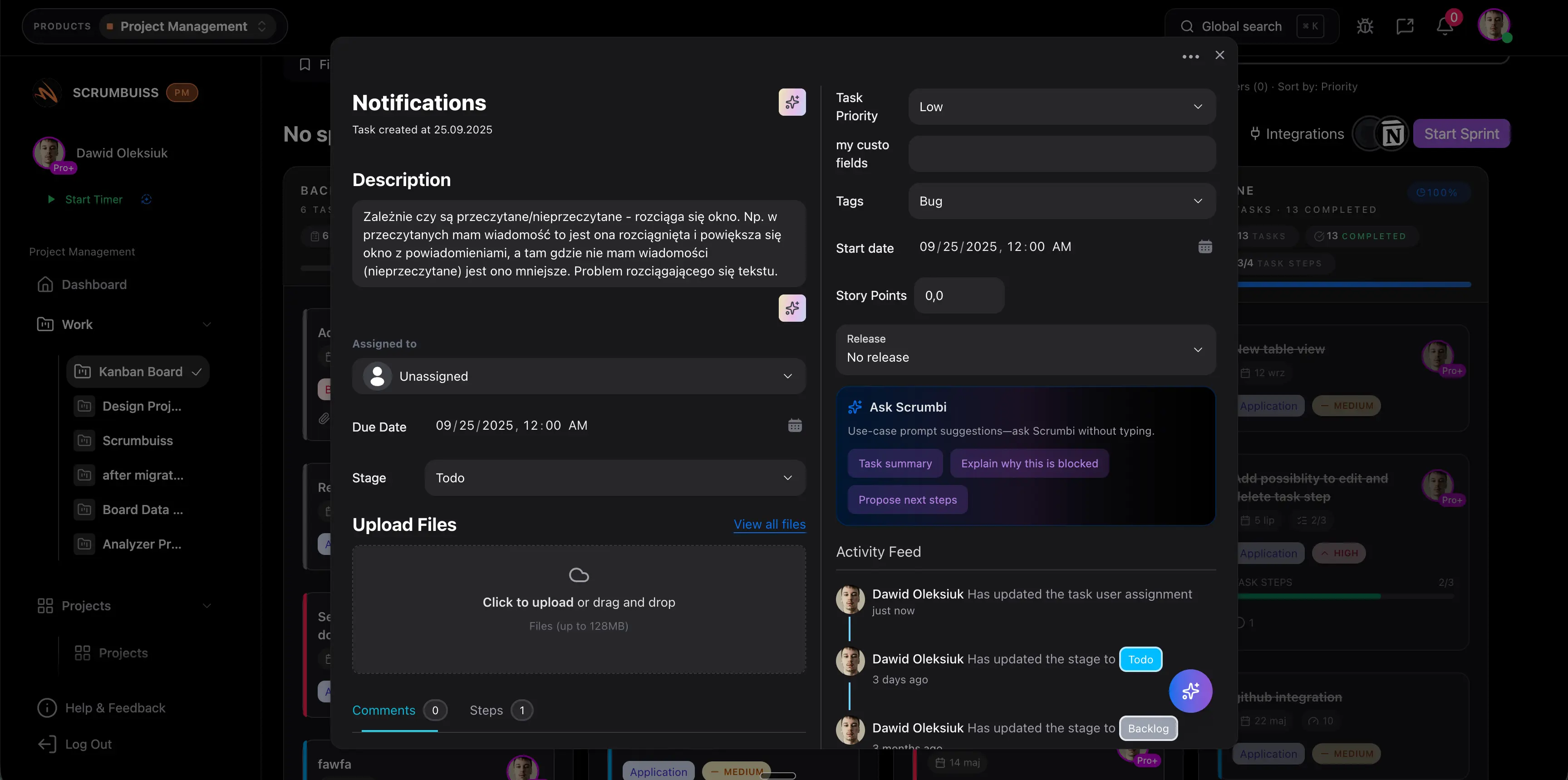
Custom fields become operationally valuable when they do more than store metadata. The strongest setup lets teams filter reports, trigger automations, and compare delivery health from the same field model that shaped intake and execution.

  • Build dashboards and saved views from the same field definitions so reporting stays consistent across teams and project types.
  • Trigger routing, reminders, and escalation rules when field values change instead of relying on manual status policing.
  • Turn field hygiene into workflow reliability by using one shared model for approvals, priorities, delivery stages, and operational follow-up.
Scrumbuiss custom fields reporting view used for dashboards and automation triggers

Competitor snapshot

These tools all support custom fields, but they package the capability around different operating models. The useful comparison is whether custom fields stay readable and dependable across intake, execution, and reporting, or mainly become another workspace-admin problem to maintain.

Tool Best for Custom-fields angle Main tradeoff Why teams choose Scrumbuiss instead
ClickUp Teams that want a highly configurable workspace and are comfortable shaping their own operating model around fields, views, and workflow rules. ClickUp publicly emphasizes adding custom fields to tasks so teams can track the work details that matter most to them across flexible workflows. That flexibility can create more admin overhead when field naming, cleanup, and cross-team consistency depend on local conventions instead of one readable workflow model. Scrumbuiss is stronger when teams want custom fields tied directly to forms, briefs, dashboards, and delivery follow-through without as much workspace design overhead.
Asana Teams that already like Asana for collaboration and want structured metadata on projects and tasks inside that broader work-management environment. Asana publicly frames custom fields as a way to sort, filter, automate, and report on work with consistent project data. Buyers should validate whether field governance, intake structure, and stakeholder-readable reporting still need extra process design once the workflow becomes more delivery-specific. Scrumbuiss is stronger when the evaluation centers on project management software with custom fields that standardize intake, delivery context, and reporting in one operating layer.
Wrike Organizations that want enterprise work management with custom data structures, reporting, and broader process control across larger teams. Wrike publicly emphasizes tailoring workflows with custom fields so teams can organize work data and report on it across their workspace. That broader work-management positioning can be heavier than teams that mainly need a lighter delivery workflow where custom fields stay close to requests, briefs, and weekly project reviews. Scrumbuiss is stronger when the buying need is a delivery-first custom-fields workflow that keeps modeling, routing, and reporting readable for the people running the work.

Review current plan limits, data-model depth, and automation packaging on the vendor pages before you buy. Product names are trademarks of their respective owners.

What to validate in a live pilot

The best pilot is one workflow where inconsistent project data already creates friction. Use the checklist below to judge whether custom fields reduce cleanup and improve delivery clarity, not just whether the system supports another field type.

  1. Step 1

    Choose one real workflow where field consistency matters, such as intake, client delivery, internal change requests, or weekly status reporting.

  2. Step 2

    Define the minimum field set the team actually needs to route, review, and report on the work without another spreadsheet layer.

  3. Step 3

    Map where those fields should appear: intake form, brief, project view, dashboard, and any automations or notifications.

  4. Step 4

    Run the workflow end to end and confirm the same field values stay visible after handoffs instead of being re-entered elsewhere.

  5. Step 5

    Measure whether reporting, approvals, and next-step decisions become faster because teams trust the field model.

  6. Step 6

    Set go or no-go criteria: less manual cleanup, clearer layouts, more consistent reporting, and fewer clarifying loops after kickoff.

FAQ

These are the questions teams usually need answered before custom fields become a reliable part of intake, delivery reporting, and workflow automation.

What do custom fields solve in project management?

Custom fields solve the problem of important project context living in inconsistent notes, labels, or spreadsheets. They give teams a structured way to capture details like request type, owner, priority, client, approval state, budget, or risk so the same data can support intake, execution, reporting, and follow-up decisions.

How are custom fields different from tags or notes?

Tags and notes are useful for lightweight context, but they usually do not create a dependable data model. Custom fields are structured and repeatable, which makes them much better for filtering, reporting, routing, automation rules, and keeping multiple teams aligned on the same project facts.

When do teams outgrow spreadsheets for project fields?

Teams usually outgrow spreadsheets when the same project data has to stay current across requests, active work, dashboards, and stakeholder reviews. Once people start copying statuses, owners, or approval details between tools, a spreadsheet field model becomes harder to trust and slower to maintain.

How do custom fields support reporting and automations?

Custom fields support reporting by giving dashboards and saved views a consistent structure to group, filter, and compare work. They support automations when changes in those values can trigger routing, reminders, escalations, or follow-up actions without waiting for someone to notice the update manually.

When do custom fields become overkill?

Custom fields become overkill when the team is creating fields that nobody uses to make a real decision or when every workflow shows every field at once. A good custom-field model stays intentionally small, reflects actual operating decisions, and remains readable for the people who need to use it every day.