Project Management Software for IT Operations
Project management software for IT operations should do more than collect tickets. The stronger fit keeps incident coordination, change scheduling, automations, Slack-connected updates, and delivery follow-up readable in one operating workflow so teams do not rebuild status across chat, calendars, and side spreadsheets.
Reviewed on March 14, 2026
A practical workflow guide, illustrated with real Scrumbuiss screenshots. For real customer quotes, visit Customers .
How we evaluated project management software for IT operations
Reviewed on March 14, 2026. This guide compares the workflow IT operations teams most often struggle to keep readable in one place: incident intake, change windows, ownership, Slack-connected updates, automations, and follow-up work that affects broader delivery plans.
- We reviewed how Scrumbuiss supports that workflow across the ITSM product, ITSM solution page, Automations, Calendar, Risk Center, and the Slack integration.
- We compared that against the official positioning published by Atlassian for Jira Service Management, ClickUp for IT PMO workflows, and Freshservice for AI-powered IT service management.
- We prioritized buyer intent over feature-parity theater: what helps IT operations teams coordinate incidents, planned changes, and stakeholder updates without splitting operational context away from delivery work.
Who it’s for
Teams that want a clear workflow, less manual coordination, and better visibility.
- IT operations teams handling both reactive incidents and planned changes in the same week
- Ops leads who need stakeholder-readable updates without rebuilding status in Slack threads or slide decks
- Organizations where operational work affects delivery timelines, release readiness, or customer-facing commitments
- Teams testing whether one operating workflow can replace ticket-only coordination plus side spreadsheets and calendar workarounds
Highlights
- Incident coordination with clear ownership and a readable status trail
- Change windows and scheduling that stay visible to the people affected
- Automations for reminders, escalations, and recurring follow-up work
- Slack-connected updates for incidents, changes, and exceptions
- Risk and delivery visibility when operational work affects broader plans
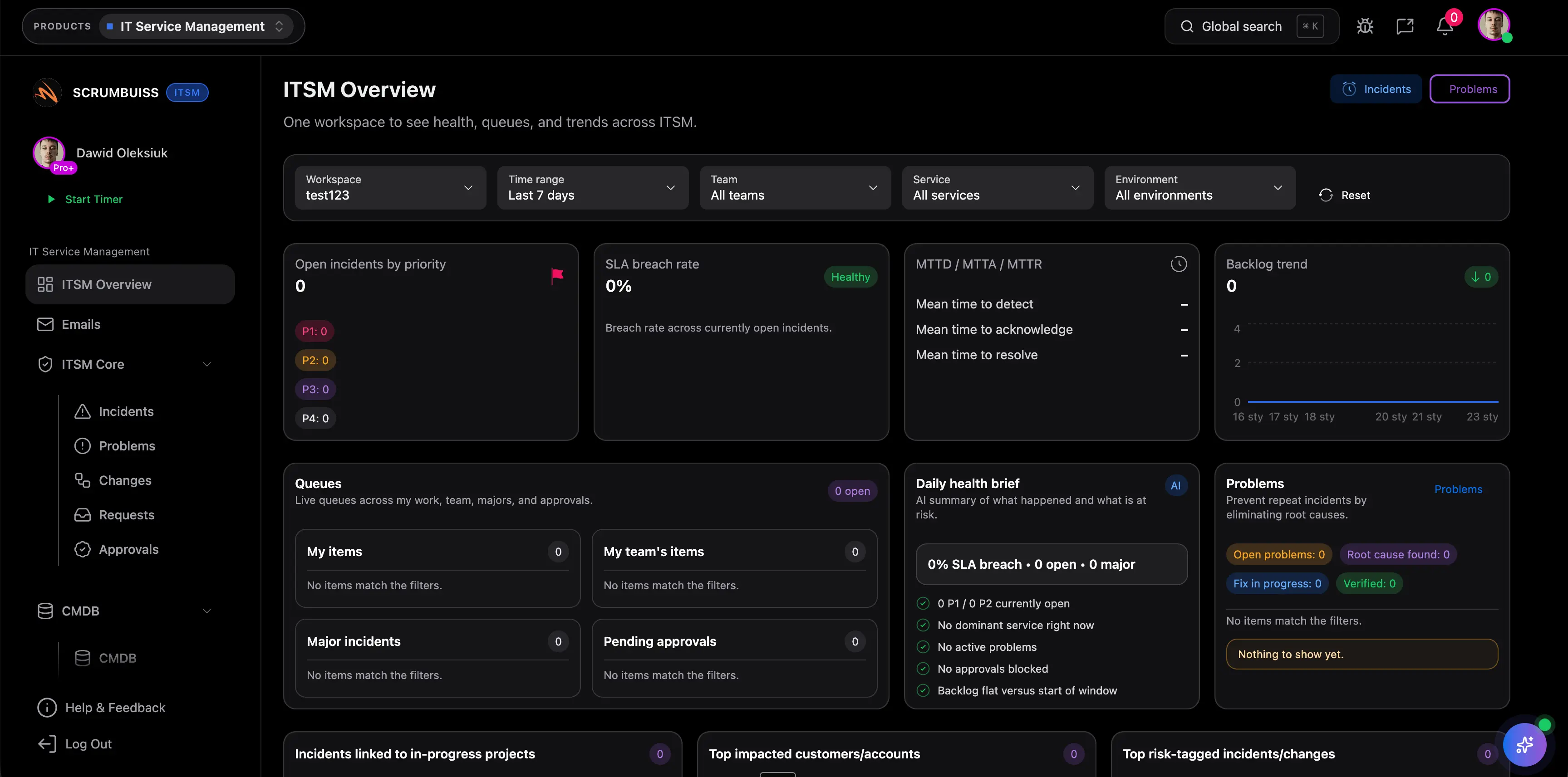
IT operations buyer comparison
The practical decision is not which tool can open a ticket. It is which workflow keeps incidents, change coordination, automations, and stakeholder-readable updates connected closely enough to the delivery work they affect.
| Platform | Best fit | Main tradeoff | Where Scrumbuiss is stronger |
|---|---|---|---|
| Scrumbuiss | IT operations teams that want incidents, change windows, automations, Slack-connected updates, and delivery follow-up to stay in one readable operating layer. | It is not the default enterprise service-desk incumbent, so teams should validate the workflow with a live pilot that includes real incident traffic, planned changes, and recurring stakeholder reviews. | Keeps operational work, delivery context, calendars, dashboards, and follow-up coordination closer together instead of isolating the workflow inside a ticket queue. |
| Jira Service Management | Organizations that want deeper ITSM and service-ops structure, especially when service desks, request management, and Atlassian ecosystem depth are core buying criteria. | Teams still need to decide how operational updates, change visibility, and broader delivery reporting stay readable for people who do not live in the service desk all day. | Scrumbuiss is stronger when the shortlist prioritizes one operating workflow for incidents, change coordination, automations, and delivery visibility beyond the service queue itself. |
| ClickUp | Teams willing to configure an IT PMO-style workspace around projects, requests, governance, and cross-team planning inside a highly flexible system. | That flexibility can create extra setup and maintenance overhead if the team wants a clearer default workflow for operational coordination rather than another configurable workspace. | Scrumbuiss offers a tighter workflow for teams that want incidents, changes, dashboards, and Slack-connected follow-up to stay connected without as much workspace design effort. |
| Freshservice | Service-desk-centric IT teams that prioritize AI-assisted ticketing, request handling, asset context, and traditional IT service management workflows. | It can be a weaker fit when the bigger problem is keeping operational changes, delivery planning, and stakeholder updates connected outside the service desk boundary. | Scrumbuiss is more compelling when incidents and planned changes need to stay tied to broader project timelines, automations, and cross-functional delivery reviews. |
This is a fit-and-tradeoff view based on public product positioning and visible workflow coverage, not a feature-by-feature procurement checklist.
Common challenges
- Incidents bounce between teams because ownership, updates, and next steps live in several places
- Planned changes create avoidable noise when change windows are not visible early enough
- Slack becomes the real incident timeline while dashboards and calendars lag behind
- Recurring follow-ups, escalations, and reminders stay manual long after the team knows the pattern
- Operational risk is hard to explain when incidents, change plans, and delivery impact are disconnected
How it works
A practical workflow structure you can replicate in your own workspace.
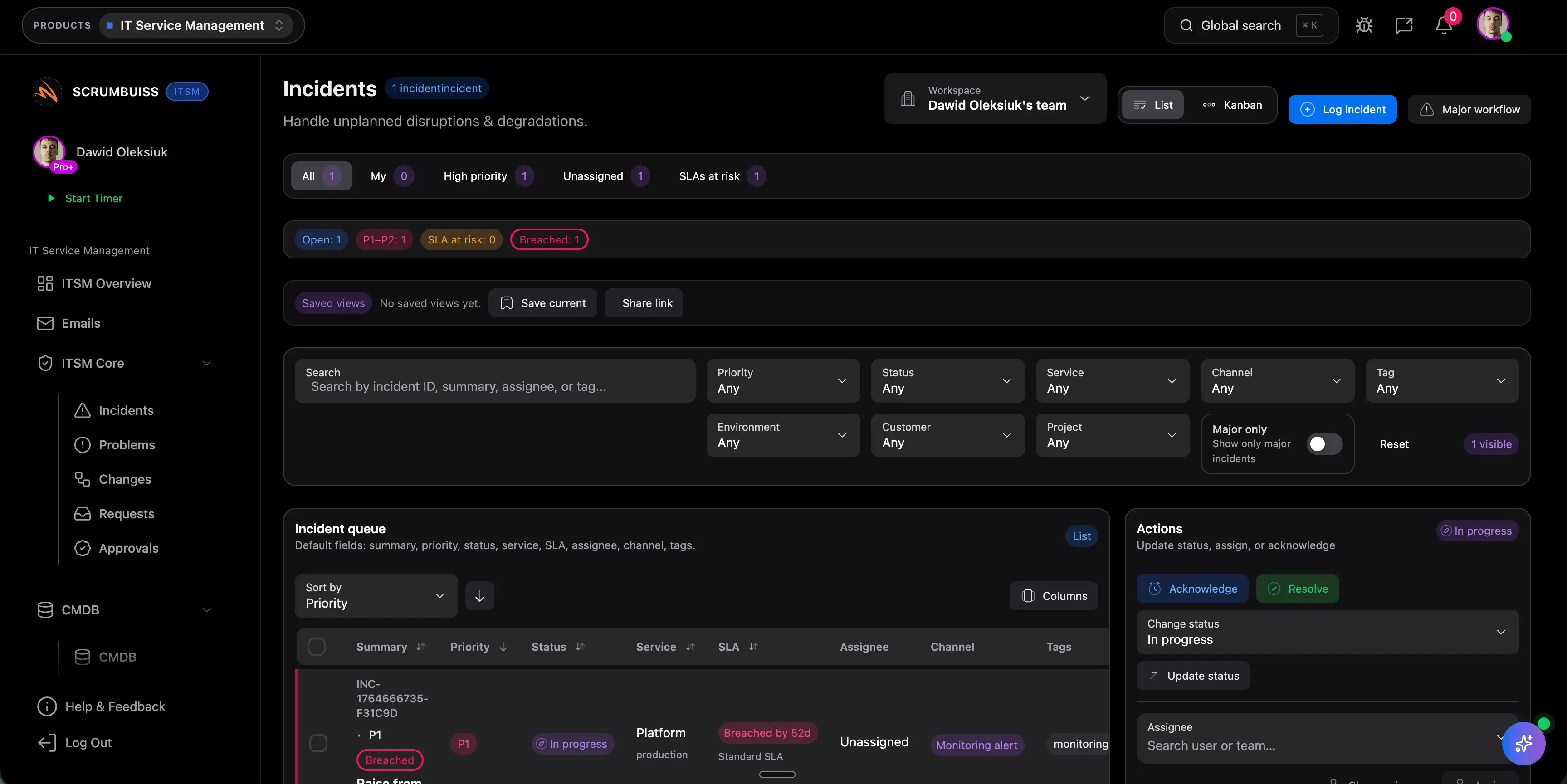
Coordinate incident intake with ownership and context
Capture impact, severity, ownership, and current status in one place so the team can coordinate the incident without rebuilding the story across tickets, chat, and side notes.
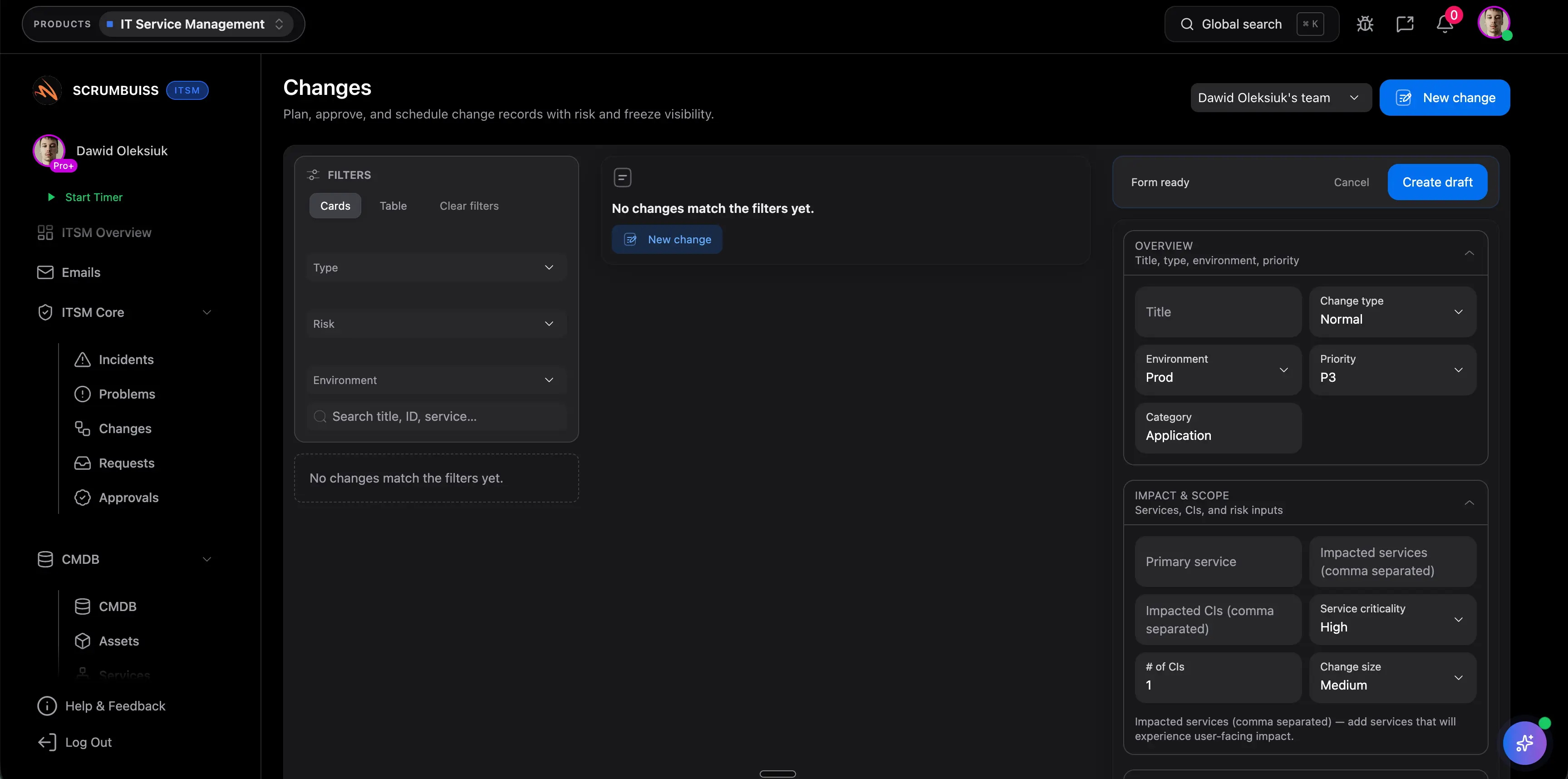
Plan change windows before they become last-minute conflicts
Use a shared calendar and structured fields to schedule changes, expose timing conflicts, and make it obvious which stakeholders need to know before the window opens.
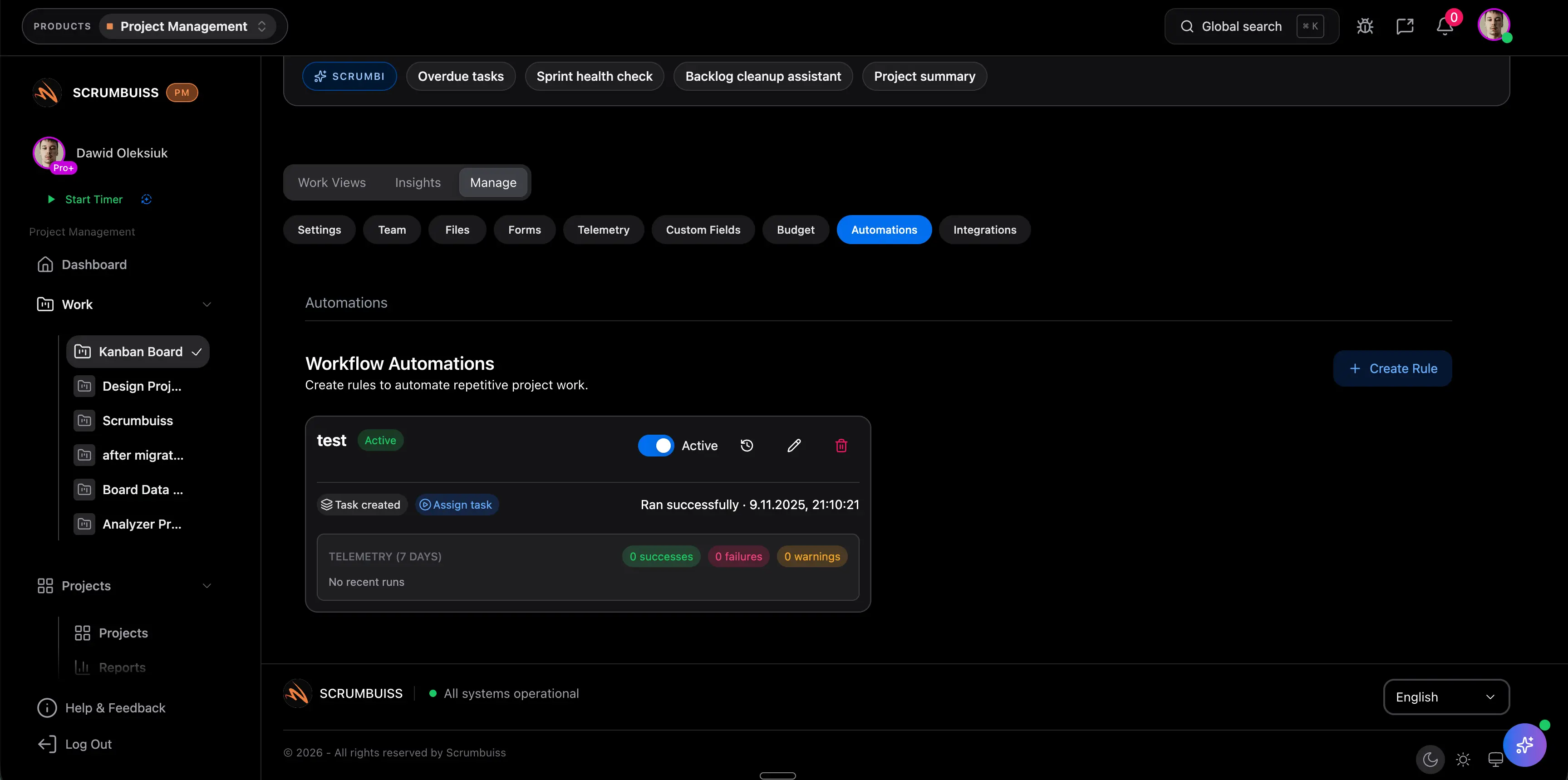
Automate the follow-up work that usually slips between handoffs
Trigger reminders, escalations, and Slack-connected summaries when thresholds are crossed so the workflow stays active after the incident call ends or the change window closes.
Related products
Products teams typically use to implement this workflow.
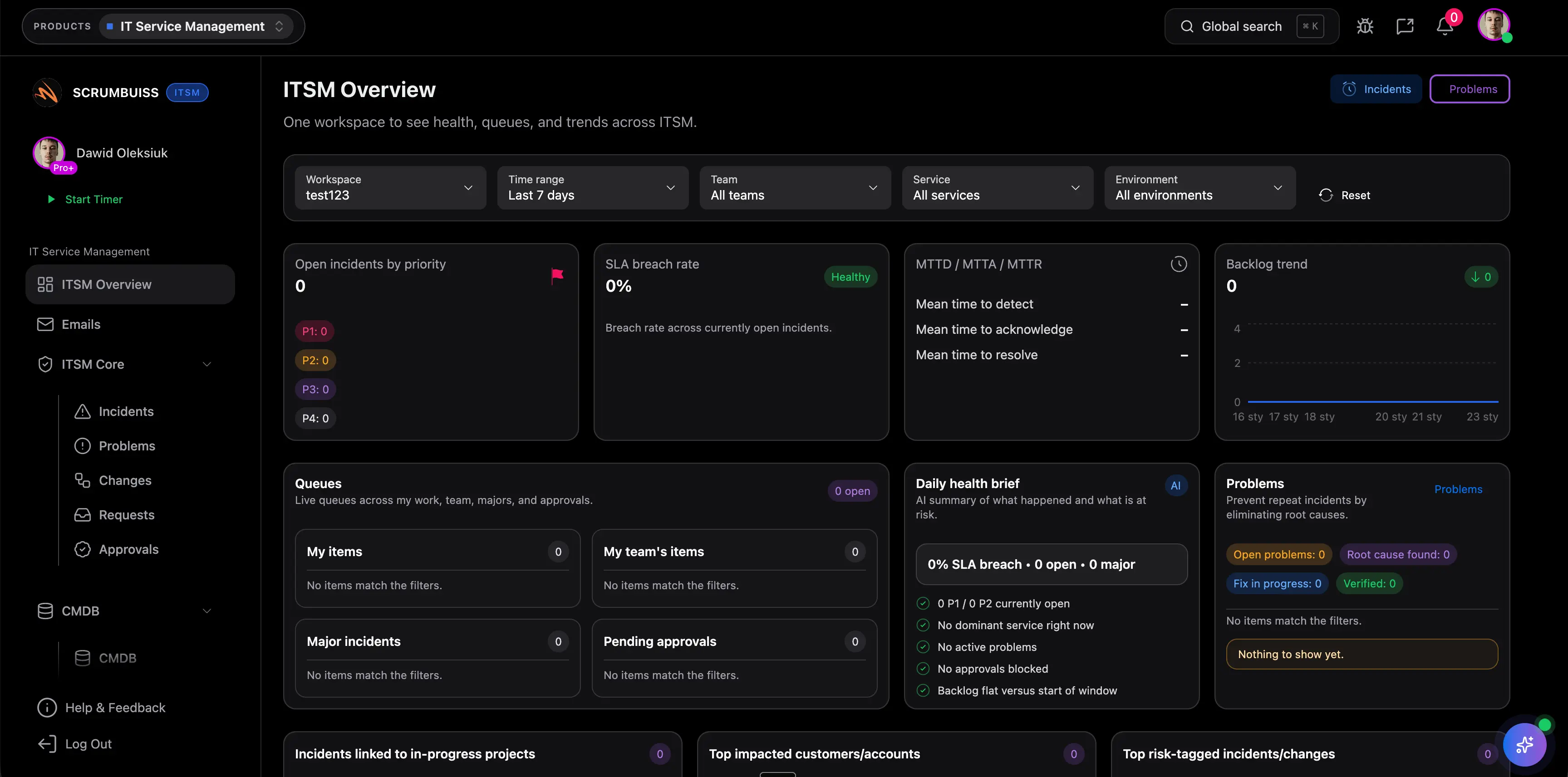
ITSM
ProductCoordinate incidents, changes, and operational work with clear ownership and scheduling.
- Incident triage and resolution tracking
- Changes calendar and scheduling
- Automations for reminders and escalations
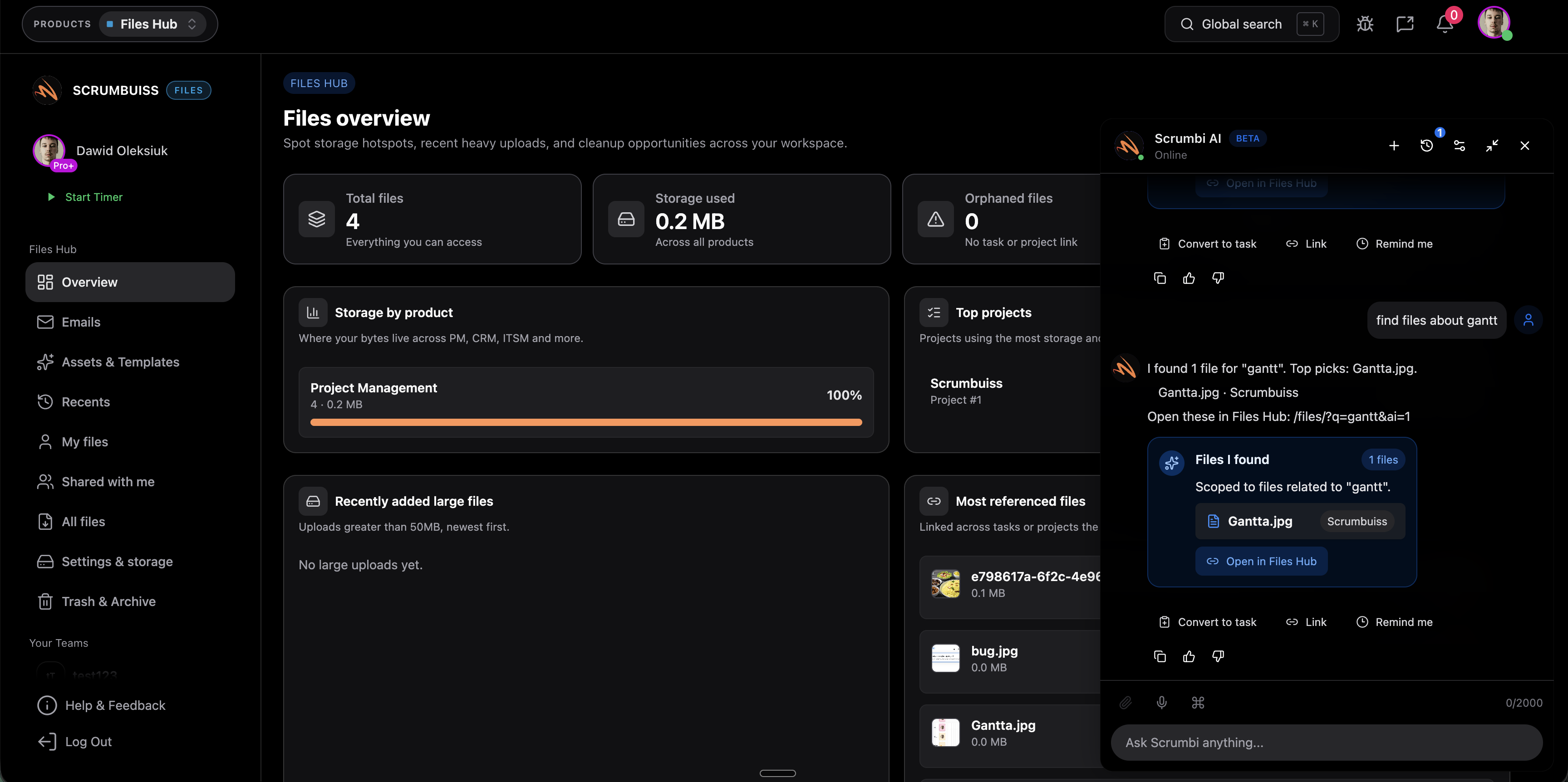
AI assistant
ProductAsk questions, summarize context, and speed up repetitive work with Scrumbi.
- Ask questions across tasks and context
- Summaries and faster decision-making
- Suggested actions with guardrails
Related templates
Templates you can copy and adapt for this workflow.
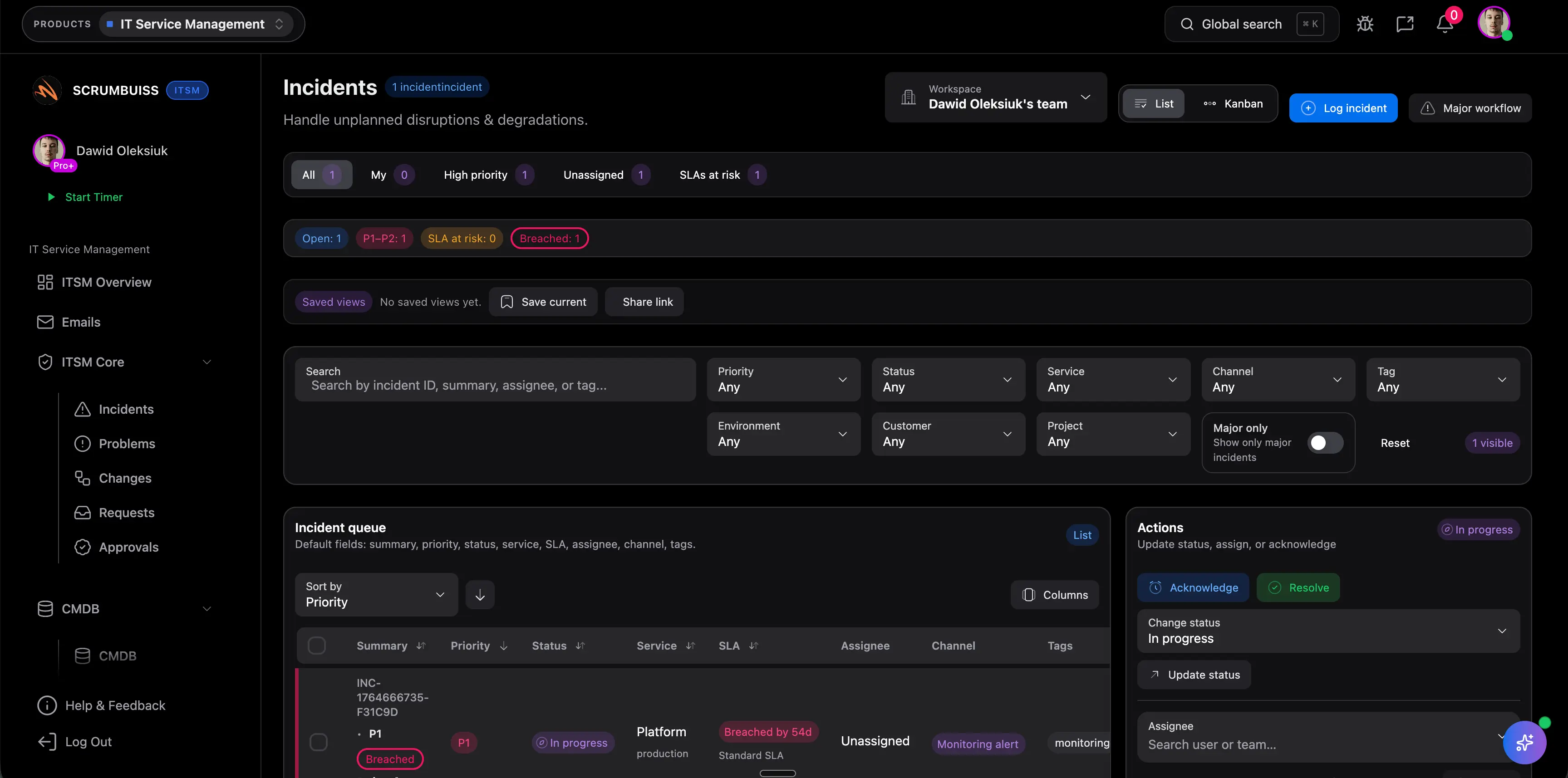
Incident postmortem template
TemplateDownload a free incident postmortem template with a blameless example, timeline, impact summary, root cause section, and follow-up checklist.
- Blameless review structure for timeline, impact, root cause, and contributing factors
- Filled authentication outage example you can adapt after real incidents
- Communication notes, customer impact summary, and follow-up ownership in one outline
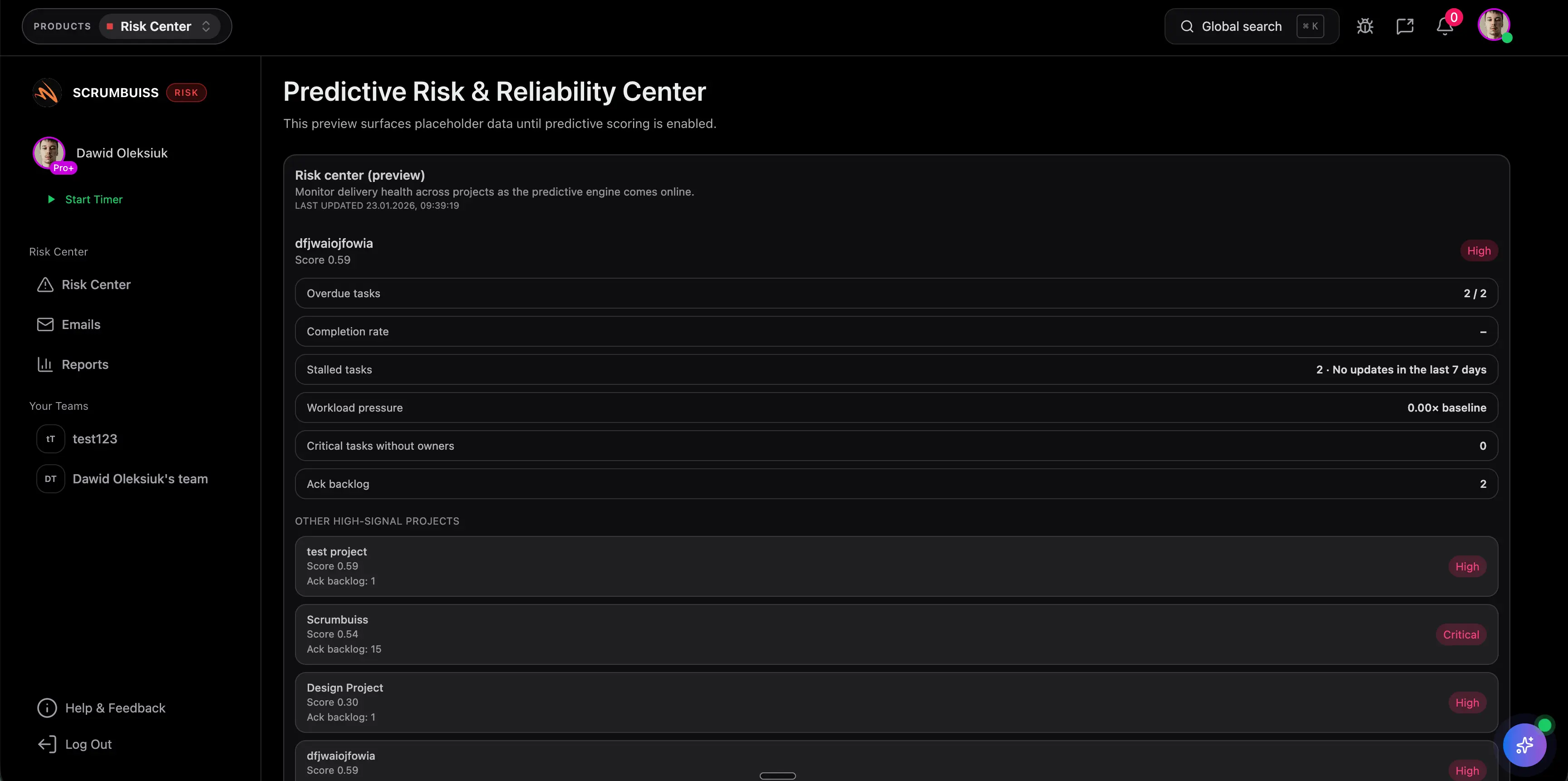
Risk register template
TemplateDownload a free risk register template with likelihood × impact scoring, example rows, owners, and a weekly review cadence.
- Likelihood × impact scoring system
- Filled example rows with owners and mitigations
- Weekly review cadence with next actions
Potential impact (examples)
The examples below are illustrative and depend on your team, process, and workload.
Faster coordination
Keep incident details, ownership, current status, and follow-up tasks in one operating layer so fewer updates have to be reconstructed across channels.
Example: Save 15–30 minutes per incident by reducing duplicate updates across tickets, chat channels, and status recaps.
More predictable changes
Use shared change windows, dependencies, and stakeholder visibility to catch conflicts before a change becomes a same-day coordination problem.
Example: Save 30–60 minutes per change by cutting last-minute rescheduling, clarification, and approval chasing.
Less manual follow-up
Automate reminders, escalations, and Slack-connected updates so the team does not rely on memory to keep operational work moving.
Example: Save 1–2 hours per week for an on-call lead or ops manager by automating repetitive coordination tasks and exception handling.
ROI example
A simple way to think about profitability is saved time value (or recovered billable time) minus software cost.
Illustrative calculation (USD)
- Team size: 8
- Hours saved per person per week: 0.3
- Blended hourly rate: $70/hour
Estimated saved time: 2.4 hours/week
Estimated value: $168/week (~$727/month)
Illustrative example only. This is not a guarantee or customer result. Subtract your software costs to estimate net ROI.
Setup checklist
A practical checklist to implement this workflow inside Scrumbuiss.
- ✓ Pilot one real operational workflow first: active incidents, planned changes, or both for the same team.
- ✓ Define fields for severity, impact, owner, service area, change window, and current operational risk before importing live work.
- ✓ Create a shared incident intake flow so each issue starts with enough context for triage, escalation, and updates.
- ✓ Set up a calendar view for change windows, reviews, freeze periods, and cross-team coordination points.
- ✓ Configure automations for overdue follow-up, risk thresholds, escalation rules, and post-incident reminders.
- ✓ Connect Slack and decide which updates belong in channels versus which stay on the record as workflow history.
- ✓ Build dashboards for open incidents, upcoming changes, blocked follow-ups, and operational risk signals the team reviews weekly.
FAQ
What should IT operations teams look for in project management software? +
IT operations teams should look for software that keeps incident coordination, change scheduling, ownership, automations, and stakeholder-readable updates connected. If the operational story still has to be rebuilt across tickets, Slack, calendars, and side docs, the coordination overhead remains manual.
When is a delivery-connected workflow better than a traditional service desk? +
A delivery-connected workflow is stronger when incidents and changes affect releases, project timelines, or cross-functional stakeholders who need one readable operating picture. A traditional service desk may still be the better fit when the core need is deeper request, asset, or service management inside the desk itself.
How should teams evaluate incident and change management workflows? +
Evaluate the workflow with a live pilot. Run real incident intake, one planned change window, the follow-up tasks after each event, and the Slack or stakeholder updates around them. The important question is whether the workflow stays readable without the team rebuilding status by hand.
Can Scrumbuiss send Slack-connected updates for incidents and changes? +
Yes. Teams can use the Slack integration and workflow automations to send reminders, status updates, or exception alerts into the channels people already monitor while keeping the operational record attached to the work itself.
Is Scrumbuiss trying to replace every enterprise ITSM capability? +
No. This page is about a narrower buyer question: whether your team needs a workflow that connects incidents, changes, automations, and delivery visibility more clearly. If your shortlist depends on deeper enterprise ITSM or service-desk requirements, validate those needs directly during the pilot.
Related features
Explore the building blocks used in this workflow.