Project schedule template
Download a free project schedule template for weekly planning, milestones, owners, dependencies, blockers, schedule risk, and next steps.
Use this project schedule template to plan weekly work, milestone timing, dependencies, blockers, and schedule risk before the same rhythm moves into Scrumbuiss Calendar and Gantt Timeline.
What this project schedule template helps you organize
Use these checkpoints to turn dates into an accountable schedule instead of another spreadsheet of wishes.
- ✓ Weekly project schedule structure for dates, owners, milestones, dependencies, and next steps
- ✓ Spreadsheet-friendly CSV that can be opened in Excel, Google Sheets, or a project calendar workflow
- ✓ Fields for schedule risk, blockers, status, notes, and follow-up ownership
- ✓ Review checklist for turning a static schedule into a live planning rhythm
When to use this template
A project schedule template is most useful when weekly timing, milestones, owners, and dependencies need structure before live scheduling is fully trusted.
- Use it when a project needs a weekly schedule before the team is ready to manage every date in a live calendar or Gantt view.
- Use it when schedule changes, milestone reviews, and owner availability are being tracked across chat, spreadsheets, and status meetings.
- Use it when stakeholders need a readable project schedule example that explains timing, risk, and next steps without every task detail.
- Use it before moving schedule planning into Scrumbuiss Calendar, Gantt Timeline, workload review, or dashboard reporting.
What is inside the schedule template
The CSV keeps dates, time windows, owners, milestones, dependencies, blockers, schedule risk, and next steps in one planning view.
What to include in a project schedule
A practical project schedule connects dates to owners, dependencies, milestones, risk, and the next action needed to keep work moving.
Task and milestone
Name the work and the milestone it supports so the schedule shows why each date matters.
Owner
Assign one owner for each scheduled item so changes, blockers, and handoffs have a clear follow-up path.
Start and end timing
Use specific dates or time windows when timing affects handoffs, stakeholder reviews, or delivery confidence.
Dependency
Record the task, approval, file, or decision that must happen before the scheduled work can move.
Schedule risk
Mark the risk level when timing depends on overloaded owners, external inputs, unclear scope, or a slipping milestone.
Next step
Close each row with the action that keeps the schedule moving before the next review.
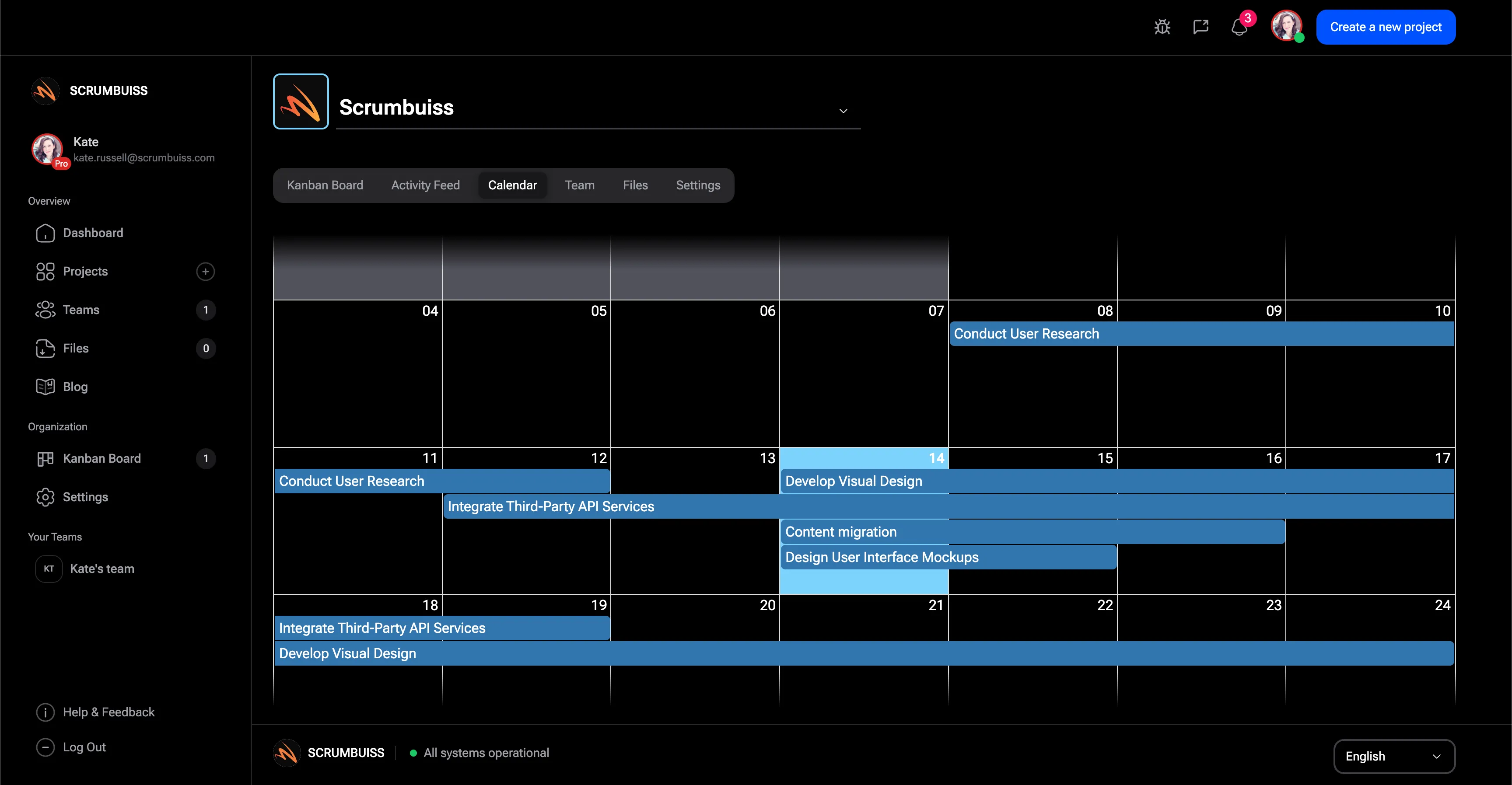
Project schedule example structure
Use this structure for weekly project planning, milestone review, or schedule updates before moving into a live calendar workflow.
Weekly schedule view
Group the work by week so the team can see near-term commitments, milestone timing, and handoff pressure.
Milestone review
Call out the milestone affected by each scheduled item so stakeholders can understand what changes when dates move.
Dependency check
List upstream tasks, approvals, files, or stakeholder decisions before the schedule is treated as reliable.
Risk and blocker review
Separate active blockers from schedule risks so the team knows what needs immediate help and what needs monitoring.
Next update
Record the next step, owner, and source link so the schedule can move into a live calendar, timeline, or status report.
Schedule review checklist
Run this checklist before publishing the schedule or using it in a stakeholder update.
- Confirm each scheduled item has one owner and one next step.
- Check dependencies before publishing the schedule as committed.
- Review milestone dates against workload and current commitments.
- Flag schedule risk before a date has already slipped.
- Link the schedule to the project plan, timeline, dashboard, or status report that will keep it current.
- Remove generic calendar events that do not affect project delivery decisions.
Common project schedule mistakes
These patterns usually make schedules fragile, stale, or disconnected from delivery reality.
- Using a schedule template as a task dump without milestones, owners, or dependencies.
- Publishing dates before workload and approval windows are checked.
- Mixing project scheduling with employee shift planning, school timetables, or appointment booking.
- Updating the schedule in a spreadsheet while the live project calendar, timeline, and dashboard tell a different story.
- Skipping blocker and risk notes until the missed date becomes the status update.
How to use this schedule template
Start in the CSV, agree on dates and owners, then move into Scrumbuiss when calendar, timeline, workload, and status updates need live context.
Map the week around milestones
Start with the milestone dates that matter, then add the tasks, owners, and time windows needed to protect those dates.
Review dependencies and schedule risk
Check approvals, files, handoffs, workload, and blockers before treating the schedule as committed.
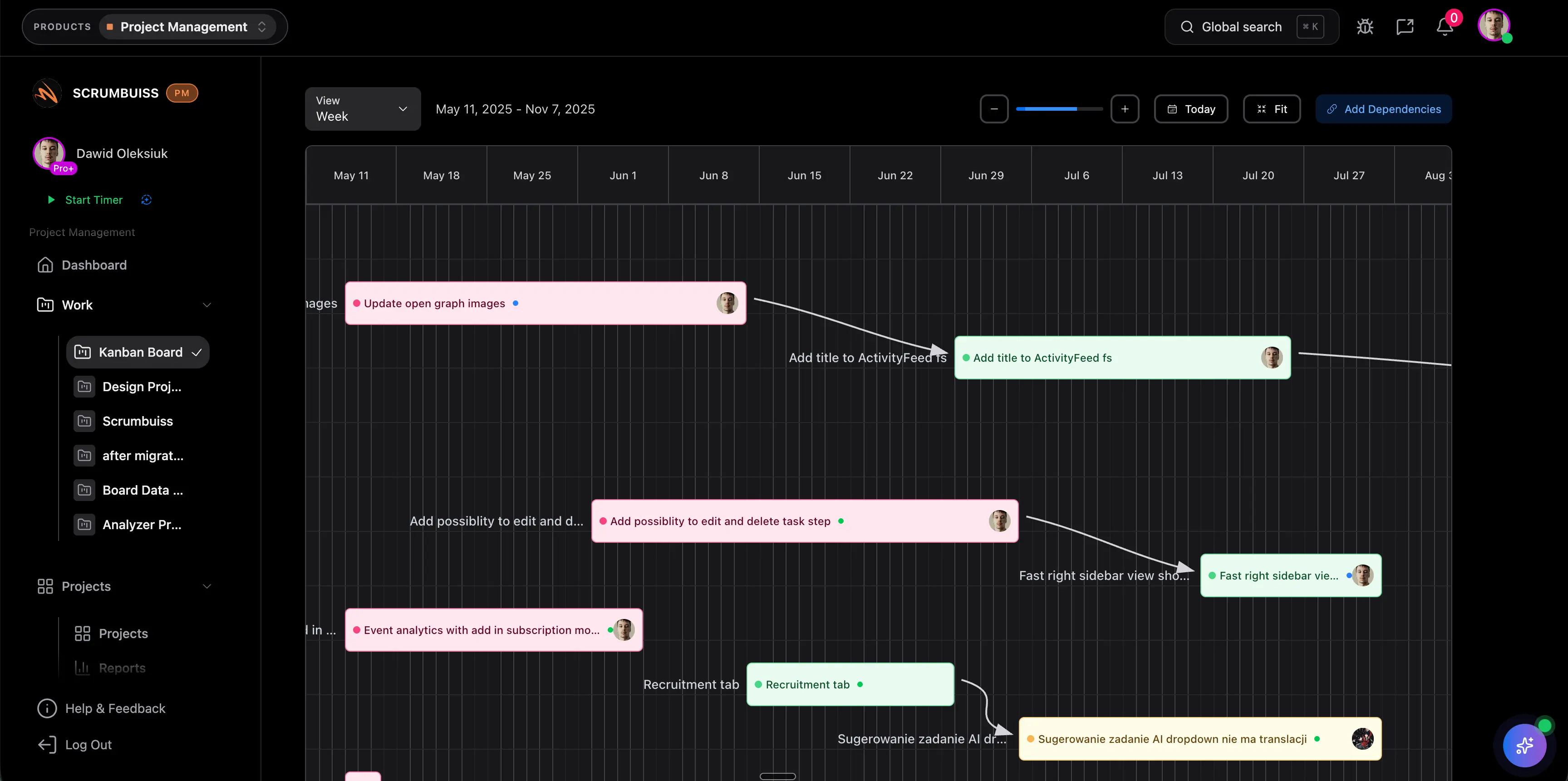
Move live scheduling into Scrumbuiss
Use Scrumbuiss Calendar, Gantt Timeline, workload, and dashboard views when the schedule needs live updates and stakeholder reporting.
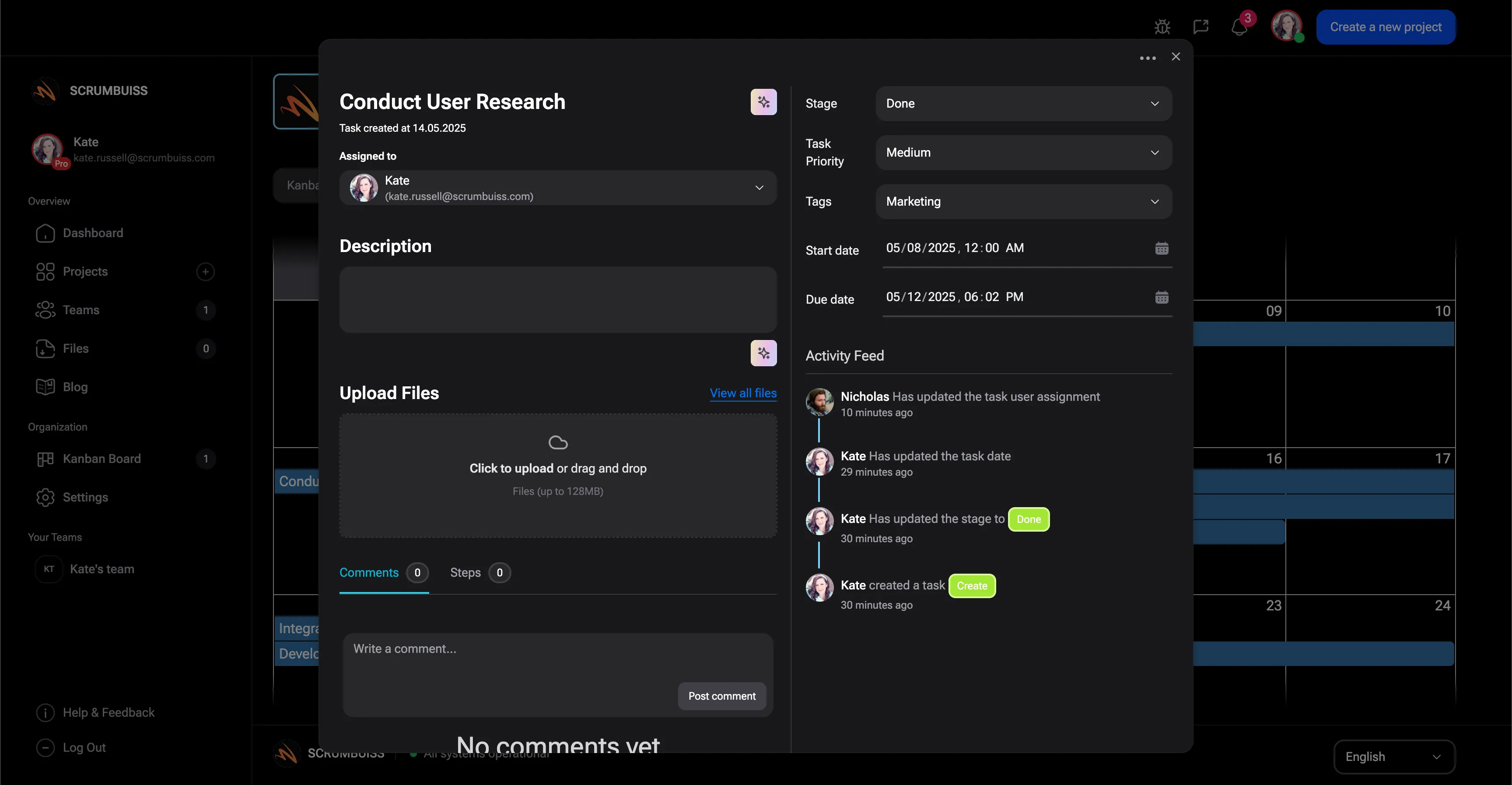
Related schedule workflows
Use these Scrumbuiss pages when schedule planning needs calendar visibility, Gantt dependencies, workload review, and stakeholder reporting.
Recommended workflows
These workflows benefit from a clear schedule before weekly planning turns into a manual status exercise.
Software teams
Use caseProject management software for software teams that keeps sprint planning, dependencies, GitHub-adjacent delivery visibility, and stakeholder reporting in one workflow.
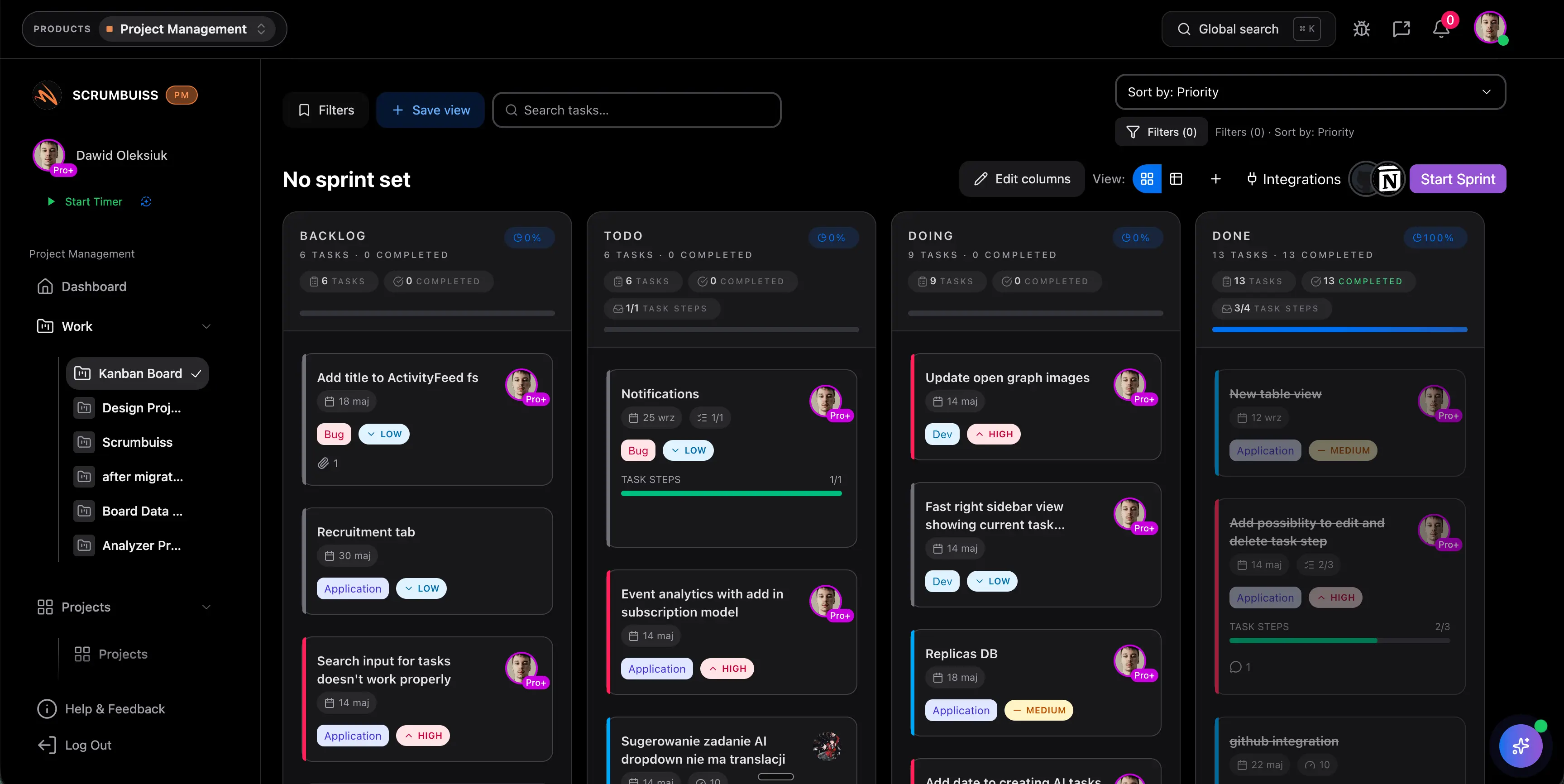
IT operations
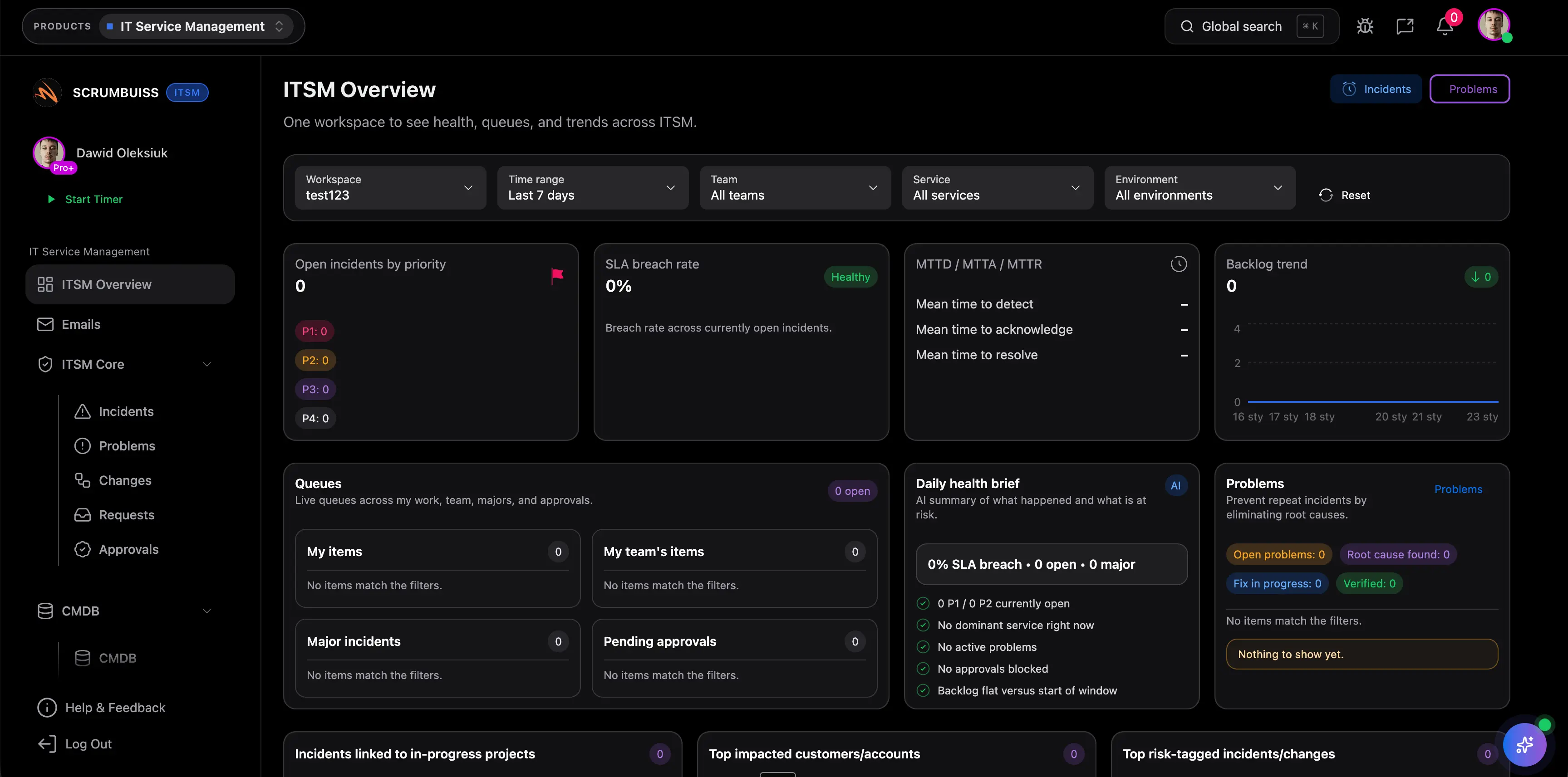
Use caseProject management software for IT operations that keeps incidents, change windows, automations, and Slack-connected updates visible in one delivery workflow.
Client project management
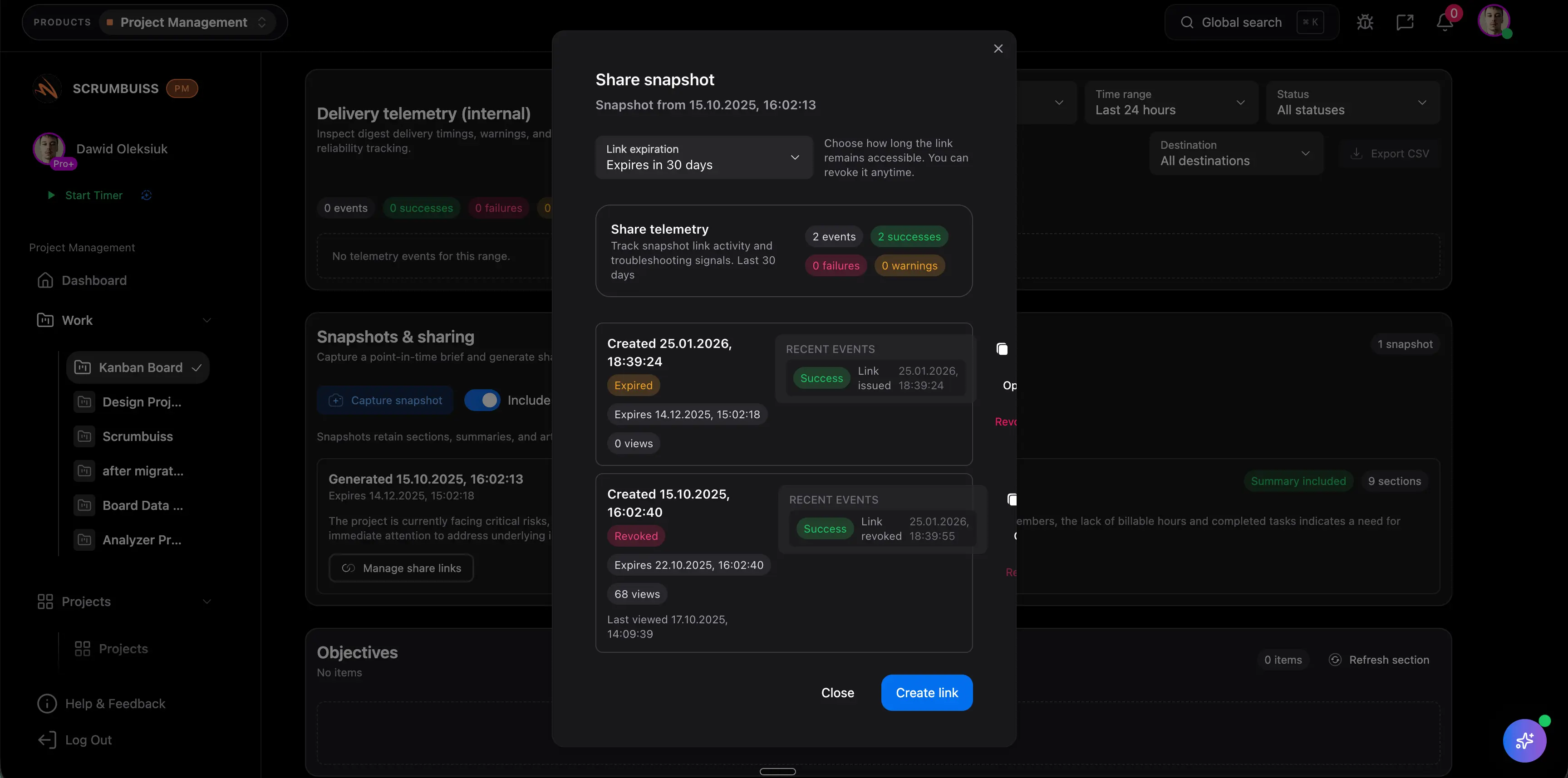
Use caseClient project management software for agencies that keeps intake, briefs, files, approvals, time tracking, workload, and client-visible status in one workflow.
Agencies
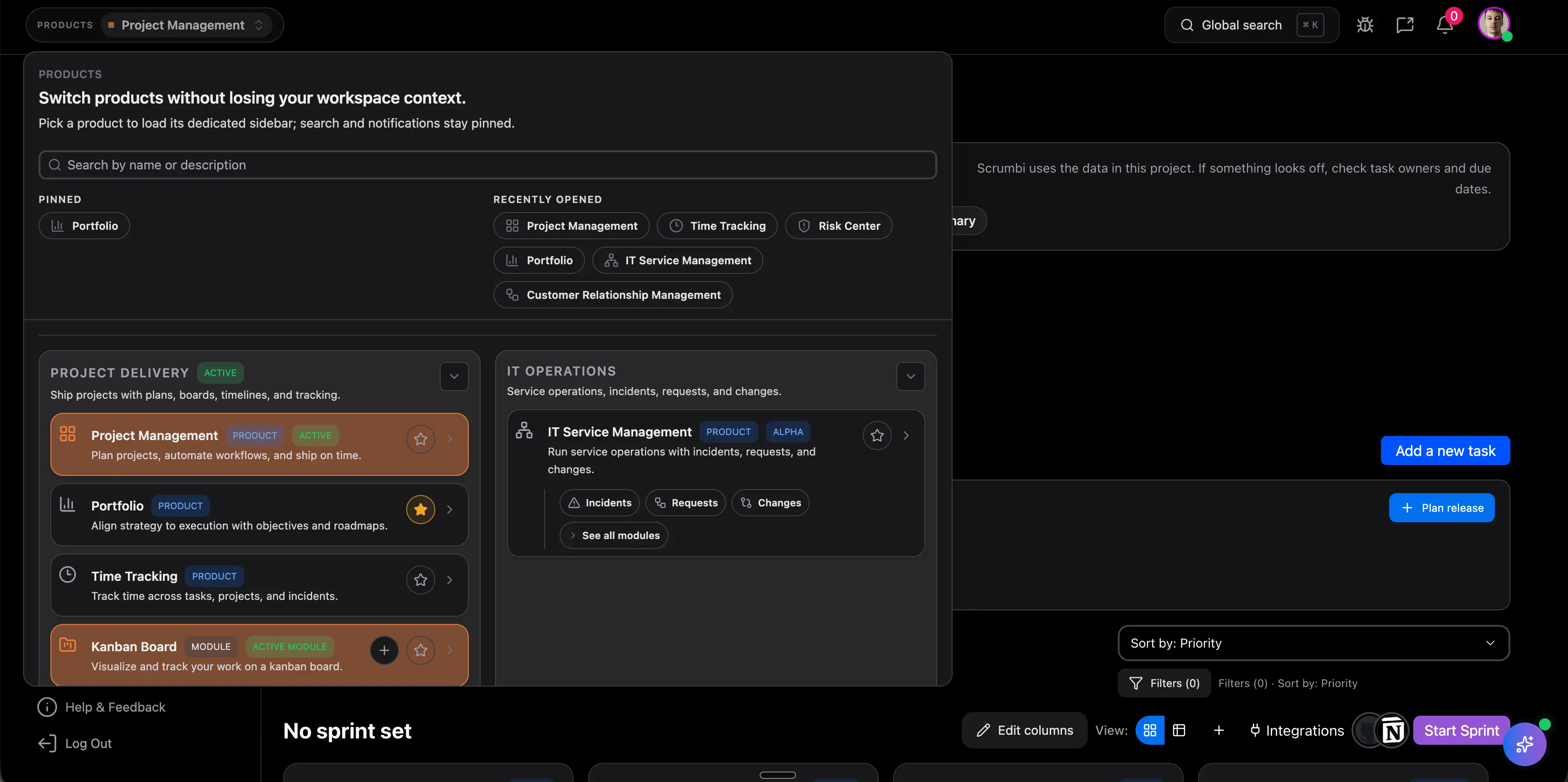
Use caseProject management software for agencies that keeps time tracking, files, workload visibility, and reporting in one workflow.
Need more ideas? Browse use cases .
Project schedule template FAQ
What is a project schedule template? +
A project schedule template is a reusable structure for planning project dates, tasks, milestones, owners, dependencies, blockers, schedule risk, and next steps.
What should a project schedule include? +
Include the week, date, task, milestone, owner, planned time, dependency, status, schedule risk, blocker, next step, and the source link where the schedule will stay current.
How is a project schedule different from a Gantt chart? +
A project schedule lists the planned work and timing. A Gantt chart shows date relationships, task bars, dependencies, and timeline movement. Teams often start with a schedule template, then move dependency-heavy work into a Gantt view.
Can I use this schedule template in Excel or Google Sheets? +
Yes. The CSV opens in Excel, Google Sheets, and most spreadsheet tools. It is designed as a lightweight starting point before live scheduling moves into calendar or timeline software.
Is this template for employee shift scheduling? +
No. This template is for project schedule planning: milestones, owners, dependencies, blockers, and delivery timing. It is not designed for HR shift scheduling, payroll, school timetables, or appointment booking.
When should a project schedule move into software? +
Move beyond a spreadsheet when schedule updates depend on live tasks, workload, Gantt dependencies, risk review, stakeholder reporting, or recurring calendar coordination.